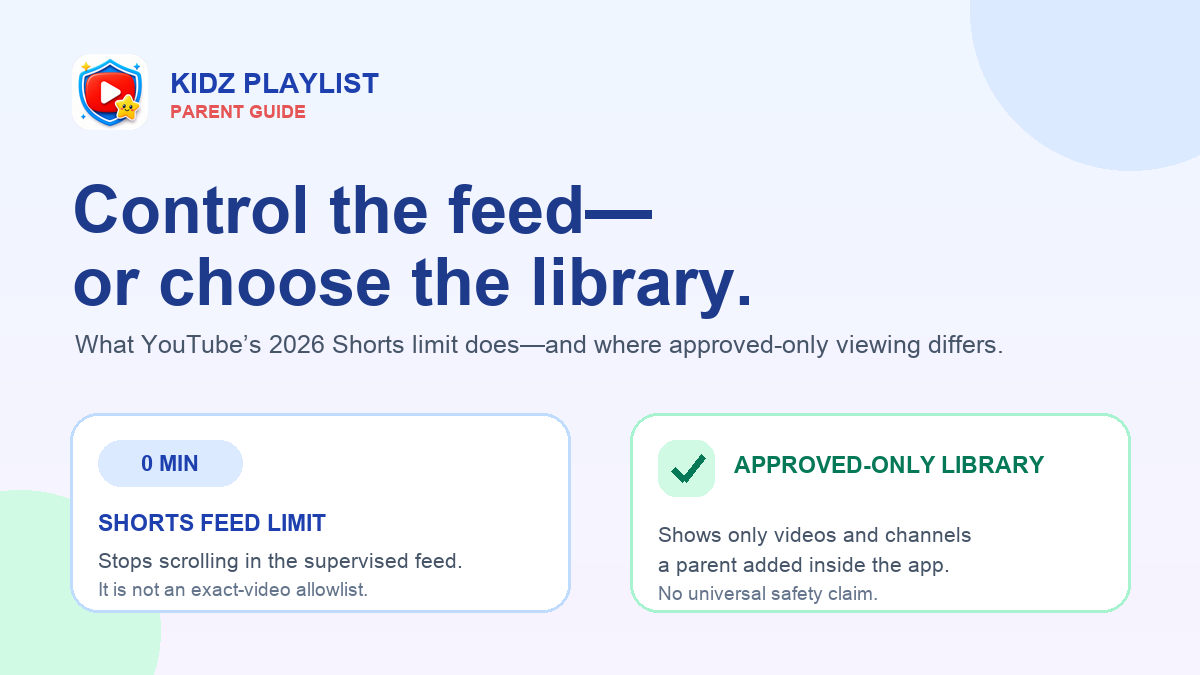
You can now limit—or set to zero—the time a supervised teen spends scrolling YouTube’s Shorts feed. That is a useful control, and parents should try it before paying for another tool.
The wording matters, though. Google calls it a Shorts feed limit. It controls scrolling in that feed. It does not turn regular YouTube into a library of only the videos or channels a parent selected.
This guide explains how the current control works, where its boundary sits, how YouTube Kids’ “Approve content yourself” option differs, and when an approved-only player such as Kidz Playlist may fit. The goal is not to label one setup universally best. It is to help you choose the control that matches the job.
In this guide
What it means to block YouTube Shorts for kids in 2026
On January 14, 2026, YouTube announced additional controls for supervised teen accounts, including a daily limit for time spent scrolling Shorts. Google’s current help documentation now lists zero among the available Shorts feed limits.
For a supervised teen account, YouTube says that reaching the daily limit prevents further scrolling in the Shorts feed for the remainder of the day. The limit resets the next morning. The official setup path sits in YouTube’s Family Center under the supervised account’s Time management controls.
These are current product facts, not a promise that the same menu wording will stay unchanged. Check YouTube’s official pages before relying on a saved walkthrough:
- YouTube Help: Set a Shorts feed limit
- YouTube Help: Teen supervision features in Family Center
- YouTube Blog: New ways to support teens and families
How to set the Shorts feed limit to zero
For a supervised teen account, YouTube’s current instructions use this path:
- Open YouTube and sign in with the linked parent account.
- Open You, then Settings.
- Select Family Center.
- Choose the supervised teen’s account.
- Open Time management.
- Set the daily Shorts feed limit to 0 minutes.
After saving, verify the setting from the supervised account rather than assuming it applied. Google’s screens can vary by device, app version, account type, and region.
If you are adjusting your own YouTube account rather than a supervised account, YouTube also provides a personal Shorts feed reminder. Its help page says a user can dismiss or ignore that reminder after the chosen time. That is different from the parent-managed supervised-teen control, which YouTube says prevents further Shorts-feed scrolling after the limit is reached.
What the limit does—and does not do
What the zero-minute setting does
For the supervised teen setup described by YouTube, the zero-minute option sets the daily Shorts feed allowance to zero. YouTube says the limit prevents scrolling in the Shorts feed for the rest of the day and resets the next morning.
That makes it useful when the parent’s specific goal is: keep the supervised teen from scrolling the Shorts feed today.
What it does not do
The setting is not described as a device-wide YouTube blocker. It does not create an exact list of parent-approved videos for regular YouTube, and it does not replace all of YouTube’s other content settings.
YouTube’s own family-comparison page says supervised teen accounts can explore all of YouTube except age-restricted content. It also says parents cannot decide exactly what content a supervised teen sees. A supervised teen account is voluntary, and YouTube’s Help Center says a teen can turn supervision on or off.
The precise takeaway is:
- Shorts feed limit: controls daily scrolling time in one YouTube surface.
- Content settings: affect the broader supervised YouTube experience.
- Exact approval: requires a different setup, such as YouTube Kids’ handpicked-content mode or a separate approved-only player.
Do not describe the zero-minute feed limit as proof that every Short is blocked everywhere. A Short may be linked, surfaced, or played outside the scrolling feed. Google’s documentation names and describes a feed limit, so this guide keeps the claim at that boundary.
How YouTube Kids Approved Content Only differs
Google has not removed exact-content approval from YouTube Kids. In the YouTube Kids app, a parent can choose Approve content yourself and handpick videos available to the child’s profile. For a sourced comparison of that setting with Kidz Playlist’s approved-only library, read YouTube Kids “Approve content yourself” vs Kidz Playlist.
That option is a closer match when the goal is exact approval and the desired videos exist within the YouTube Kids experience. Google’s current family-comparison page says YouTube Kids can be used without creating a Google Account for the child.
YouTube Kids, supervised YouTube, and regular YouTube are different products or account experiences. Before changing settings, decide which one the child actually uses:
- YouTube Kids: a separate app with age-based settings and an option to handpick content.
- Supervised YouTube for kids: regular YouTube with parent-selected content levels and selected controls.
- Supervised YouTube for teens: a voluntary supervised experience with Family Center controls, including the Shorts feed limit.
See Google’s current comparison: Understand your choices as a family. For exact YouTube Kids setup steps, use Parental controls for YouTube Kids profiles.
When an approved-only player fits
A Shorts feed limit is a good match when the child or teen will continue using YouTube and the parent mainly wants to reduce Shorts scrolling. An approved-only player addresses a different question: What if the child should browse only a library that the parent assembled?
Inside Kidz Playlist, a parent can approve individual public YouTube videos or public channels and assign them to local child profiles. The child view does not include an open search box or a general recommendation feed. An approved Short plays as an approved item rather than opening an endless in-app Shorts feed.
Kidz Playlist also provides per-profile daily watch limits and a parent PIN. Profiles, approvals, limits, and local watch sessions stay on the device; limited YouTube search, metadata, and playback requests are processed as described in the Kidz Playlist privacy policy.
The boundary is important: Kidz Playlist controls what appears inside Kidz Playlist. It does not block the YouTube app, a browser, or other video apps across the device. Families who need device-wide restrictions should configure the operating system’s parental controls separately.
Kidz Playlist is currently a one-time $4.99 purchase on Apple’s App Store, Google Play, and the Amazon Appstore. It has no Kidz Playlist account or subscription. YouTube may show ads during playback, and approved YouTube content can change or become unavailable.
For the full approval workflow, read How to whitelist YouTube videos and channels for kids. Device-specific instructions are also available for iPhone and iPad, Android, and a compatible Fire tablet.
See how Restricted Mode compares to approving videos yourself.
A practical comparison
| Parent’s goal | YouTube Shorts feed limit | YouTube Kids “Approve content yourself” | Kidz Playlist |
|---|---|---|---|
| Reduce Shorts scrolling | Sets a daily limit, including zero, for the supervised Shorts feed | Not the same control; YouTube Kids uses its own viewing and time settings | No open in-app Shorts feed; only approved items appear |
| Choose exact videos | No for supervised teen accounts | Yes, within YouTube Kids | Yes, for public YouTube videos |
| Approve channels | Not the purpose of the feed limit | Google supports handpicked content within YouTube Kids | Yes, public channels can be approved; individual exceptions can be blocked |
| Broader browsing | The supervised YouTube experience remains available under its account settings | Child uses the smaller YouTube Kids experience | Child browses only the local library built for that profile inside the app |
| Account model | Supervised teen setup uses a Google Account and YouTube channel | A child Google Account is not required for YouTube Kids | No Kidz Playlist account |
| Time control | Daily Shorts feed limit | YouTube Kids has its own timer; Family Link can also manage device time | Daily watch limit per local profile |
| Scope | YouTube account and Shorts feed | YouTube Kids app/profile | Kidz Playlist app only; not a device-wide blocker |
| Price | YouTube control; no separate Kidz Playlist purchase | YouTube Kids; no separate Kidz Playlist purchase | $4.99 one-time purchase; no Kidz Playlist subscription |
Prices, settings, and availability can change. Confirm current details in the relevant product before choosing a setup.
Parent checklist: choose the control that matches your goal
Use this five-question checklist before adding another app or changing a family account:
- Is the problem specifically Shorts scrolling? Start with YouTube’s zero-minute supervised feed limit.
- Does the child use YouTube Kids? Try “Approve content yourself” if the wanted content is available there.
- Do you need regular YouTube creators but no open in-app browsing? Compare an approved-only player.
- Do you need to block YouTube across the entire device? Use operating-system parental controls; Kidz Playlist is not a device-wide blocker.
- Have you reviewed each video or channel? An approval tool records the parent’s choice; it does not certify that content is safe, educational, or appropriate for every child.
Frequently asked questions
Can parents completely turn off YouTube Shorts in 2026?
Parents can set a supervised teen’s daily Shorts feed limit to zero. YouTube says this prevents scrolling the Shorts feed for the day. It should not be described as a universal block on every Short across every YouTube surface, account, app, browser, or device.
Is the Shorts feed limit available in YouTube Kids?
Google documents the Shorts feed limit through YouTube and Family Center for supervised accounts. YouTube Kids is a separate app with its own content and time controls, including “Approve content yourself.” Check which product and profile the child uses before following a setup guide.
Can a parent choose exact videos in supervised teen YouTube?
No. Google’s family-comparison page says parents cannot decide exactly what content a supervised teen sees. The Shorts setting limits feed time rather than creating an allowlist. Exact-video approval is available through YouTube Kids’ handpicked mode or a separate approved-only player.
Does Kidz Playlist block YouTube on the whole device?
No. Kidz Playlist limits the library and browsing experience inside its own app. It does not disable YouTube, browsers, or other apps across the device. Parents who need device-wide blocking should also configure Apple, Android, Amazon, router, or other operating-system controls.
Does “approved-only” mean every video is safe for every child?
No. Approved-only describes who chooses what enters the library. It is not a safety, educational, or age-appropriateness certification. Parents and guardians still need to review each video or channel for the individual child and revisit channel approvals as creators publish new material.
Choose the narrowest control that solves the problem
To block YouTube Shorts for kids without overstating what the setting does, start with the control YouTube already provides. Set the supervised Shorts feed limit to zero, verify it on the child or teen account, and see whether that solves the specific problem.
If the real goal is broader—only parent-selected videos or channels inside the viewing app—compare an approved-only setup. Kidz Playlist is a one-time $4.99 option for iPhone, iPad, Android, and compatible Amazon devices:
Kidz Playlist is not affiliated with, endorsed by, or sponsored by YouTube or Google. YouTube is a trademark of Google LLC. Parents and guardians remain responsible for deciding which content fits each child.