YouTube includes lessons, music, read-alouds, movement videos, and creators families value. The hard part is giving a child access to selected videos without also giving them an open search box, a general recommendation feed, or an endless Shorts feed.
An exact whitelist starts empty and adds only the public YouTube videos or channels a parent or caregiver chooses. That boundary is different from trying to block unwanted content after it appears.
Approved-only is not a universal safety label. A caregiver still needs to decide whether each video or channel fits a particular child and to review approved channels over time.
How to set up an approved-only YouTube library on a Fire tablet
1. Check the Amazon Appstore listing on the tablet
Open the Kidz Playlist Amazon Appstore listing (ASIN B0H8XDV53H). Install only if Amazon shows the specific Fire tablet as compatible. The listing is the source of truth for current device availability; this guide does not claim support for every Fire model or Fire OS version.
2. Install Kidz Playlist from Amazon
Use the Amazon Appstore CTA in this guide rather than sideloading or looking for the Google Play package. Kidz Playlist is listed as a one-time $4.99 purchase; verify the current price in the listing.
3. Create a parent PIN and child profile
Open Kidz Playlist, choose a parent PIN of at least four digits, then create a local profile for each child and set the desired daily watch-time limit.
4. Add public videos or channels
In the parent area, paste a supported public YouTube video URL, channel URL, or @handle. Review the result and assign it to the intended child profile.
5. Verify the child library
Switch to child mode and confirm that the profile shows the expected assigned library. Parent settings and links leaving the player remain PIN-gated.
Why use Kidz Playlist for an exact whitelist?
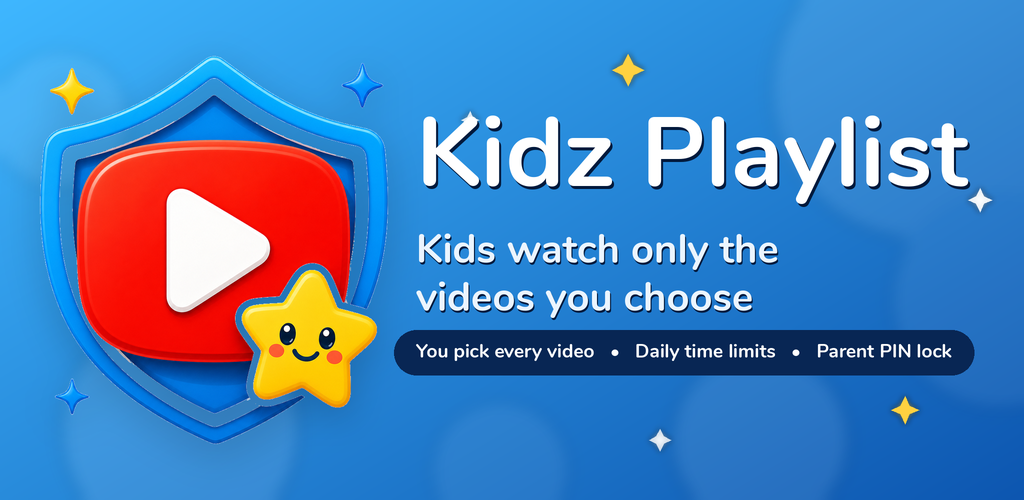
Kidz Playlist is designed around one rule: the child browses the library assembled for that profile rather than an open YouTube discovery experience. Parent setup and child viewing are separated by a parent PIN.
- Add an individual public YouTube video for the narrowest boundary.
- Add a public YouTube channel when you are comfortable approving its eligible catalog.
- Block an individual video from an otherwise approved channel.
- Create separate local profiles with different libraries for different children.
- Set a daily watch-time limit for each profile.
- Keep parent controls behind a PIN.
- Keep profiles, approvals, limits, favorites, and watch-session data on the device.
Kidz Playlist does not require a Kidz Playlist account or subscription. It is offered as a one-time $4.99 purchase. Store prices and availability can change, so confirm the current listing before purchase.
Fire tablet compatibility and setup notes
- Kidz Playlist has an Amazon Appstore listing under ASIN B0H8XDV53H.
- Compatibility must be checked against the live Amazon listing for the exact Fire tablet. Do not claim universal Fire tablet support or name an unsupported minimum Fire OS version.
- The app’s family-control data is stored locally on the tablet; this does not imply cross-device sync or offline YouTube video storage.
- Amazon’s device-level parental controls can be used as a separate layer for purchases, app access, and other tablet-wide rules.
A practical approval method for caregivers
- Start with individual videos. Review the full video, then add its public YouTube URL to the appropriate profile.
- Use channel approval selectively. A channel approval is broader and may make new eligible uploads available, so review the creator and revisit the channel periodically.
- Block exceptions. Remove a specific video from a profile when the rest of an approved channel still works for your family.
- Set a routine separately. Use the profile’s daily limit as a time-management tool, not as a judgment about whether content is appropriate.
- Review the library. Content and availability can change. Recheck approved channels and remove anything that no longer fits.
| Approval choice | Use it when | Tradeoff |
|---|---|---|
| Individual video | You want to review every item before it appears | Most precise; more setup time |
| Whole channel | You accept a broader, changing catalog | More convenient; needs periodic review |
| Channel plus blocked videos | Most of a channel fits, with a few exceptions | Practical balance; still needs maintenance |
Before handing over the device
- Watch enough of each video to assess its language, themes, tone, and sponsorships.
- Decide whether to approve one video or the broader channel.
- Check that the correct child profile is selected and only intended items are assigned.
- Test the daily limit as a routine-setting tool.
- Plan a recurring review for approved channels and library changes.
For the broader strategy and comparison between individual-video and channel approval, read How to Whitelist YouTube Videos and Channels for Kids.
Frequently asked questions
Does Kidz Playlist work on every Fire tablet?
This guide does not claim universal Fire tablet support. Check the live Amazon Appstore listing for ASIN B0H8XDV53H on the exact tablet; install only when Amazon marks that device as compatible.
Do I need Google Play on a Fire tablet?
No. Use the Kidz Playlist listing in the Amazon Appstore. This guide does not recommend sideloading or installing Google Play to get the app.
Can I approve one video instead of a whole channel?
Yes. Paste the public video URL in the parent area, review it, and assign it to the selected child profile without approving the full channel.
Does local-first mean videos work offline?
No. Local-first refers to family-control data such as profiles, approvals, limits, favorites, and watch sessions. YouTube videos still need a network connection to load and play.
Is Kidz Playlist endorsed by Amazon, YouTube, or Google?
No. Kidz Playlist is an independent app from Insert Click LLC. Amazon Appstore availability does not imply Amazon endorsement, and the app is not affiliated with or endorsed by YouTube or Google.
Related Kidz Playlist guides
- Exact YouTube whitelisting for kids: full guide
- Restricted Mode vs approved-only whitelist
- How to Whitelist YouTube on an iPhone
- How to Whitelist YouTube on Android
- How to block YouTube Shorts for kids
- YouTube Kids Approve Content Yourself vs Kidz Playlist
Build an approved library on Fire tablet
Kidz Playlist is listed as a one-time $4.99 purchase with no Kidz Playlist account or subscription. Confirm the current price and compatibility on the store listing.
View Kidz Playlist on Amazon AppstoreOfficial listing reference: ASIN B0H8XDV53H.